
Start by listening
The fastest way to find the cause is to play one of the recordings. From the teacher dashboard or the assignment view, click View details on the student’s story and listen to a page or two.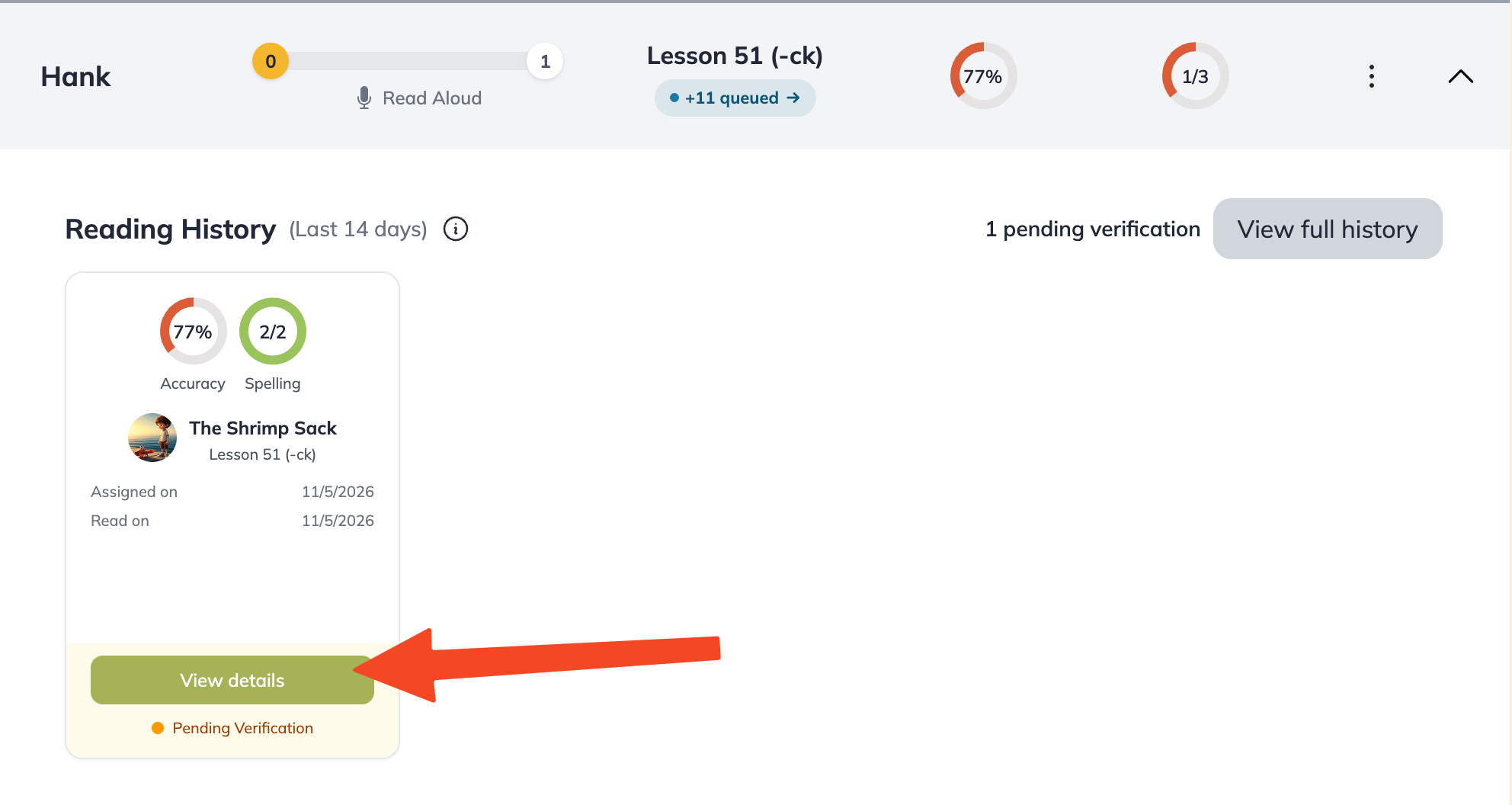
Silent or very quiet recordings
The student pressed Record, but the microphone didn’t pick up their voice.- Check the headset. Look for a mute button or switch on the headset or its cord, and make sure the microphone boom isn’t flipped up (many headsets mute that way). Unplug the headset and plug it back in.
- Check which microphone the browser is using. If the device has a built-in mic and a headset, the browser may be using the wrong one. Click the microphone icon in the address bar, make sure the headset is selected, then refresh the page.
- Check the device’s input settings. On a Chromebook, click the clock in the bottom-right corner, open the audio settings, and pick the headset under Input. Make sure the input isn’t muted and the level isn’t turned all the way down.
- Move the mic closer. The mic should sit about two fingers’ width from the student’s mouth. Built-in laptop mics work best when the student sits squarely in front of the screen.
Talking, but not reading the page
This is the most common reason a recording can’t be matched to the story. The microphone works, but what the student said doesn’t match the words on the page. This happens when students:- Chat with a neighbor or talk to themselves while recording
- Press Record and keep the recording going while they play or click around
- Read a different page or story than the one on screen
- Model it once for the class: tap Record, read the page on the screen out loud, tap Stop, then turn the page.
- Seat students so they aren’t facing each other during recording time, and give each student their own device and headset.
- Spot-check one recording per student in your first week of recording. Students who know you listen tend to stay on task.
- Hold a weekly reading celebration. About once a week, play a student’s recording for the class to celebrate their reading. This boosts engagement and accountability, because students know you can hear what they do in LitLab.
Noisy recordings
If you can hear the student reading but there’s a lot of background noise, LitLab may miss words.- Use wired headsets with a microphone when possible. They pick up much less of the room than a built-in mic.
- Spread recording stations out, or schedule recording during quieter parts of the block.
No recordings at all
If the assignment has Audio Recording on but a student has no recordings, their browser most likely blocked the microphone. This is by far the most common microphone error in LitLab. It usually happens when a student clicks Block on the browser’s “use your microphone?” pop-up. When this happens, LitLab shows the student a message with steps for an adult to follow for their browser. The student can also choose Read without recording to keep reading, so they finish the story but nothing is recorded. To allow the microphone again:Chrome / Chromebook
Chrome / Chromebook
- Click the blocked-microphone icon in the address bar.
- Choose Always allow microphone.
- Reload the page.
Microsoft Edge
Microsoft Edge
- Click the lock icon in the address bar.
- Under Permissions, set Microphone to Allow.
- Reload the page.
Safari (Mac)
Safari (Mac)
- Click Safari in the top menu, then Settings (or Preferences).
- Go to the Websites tab and select Microphone.
- Find litlab.ai and change it to Allow.
- Reload the page.
Safari (iPad)
Safari (iPad)
- Open the Settings app.
- Tap Safari (or Apps, then Safari).
- Tap Microphone and set it to Allow.
- Go back to Safari and refresh the page.
Firefox
Firefox
- Click the crossed-out microphone icon to the left of the address bar.
- Next to Use the Microphone, click the X to clear the blocked setting.
- Click Try again in LitLab and choose Allow when Firefox asks.
Less common microphone errors
What “Reading speed unavailable” means
When LitLab can’t measure a recording, it shows Reading speed unavailable instead of a WPM, and leaves that recording out of the student’s and class averages. The line under it tells you why:Still need help?
If a student’s recordings still aren’t coming through, reach out through the Contact Us form and include:- The device and browser (for example, Chromebook and Chrome)
- The student’s name and the story they were reading
- A screenshot of what the student sees when they try to record