
- Teacher Sign-In
- Student Sign-In
Signing In as a Teacher
All teacher sign-ins happen at litlab.ai/auth/signin. LitLab is entirely passwordless — you never create or manage a LitLab password so your data stays secure.Option 1: Google
Click Continue with Google and select your school Google account. If your browser already has your Google account active, sign-in is a single click.Option 2: Email Magic Link
Enter your email address and click Continue. LitLab sends a one-time sign-in link to your inbox — click the link in the email to sign in. The link is valid for one hour.Option 3: Clever or ClassLink SSO
If your school or district has connected LitLab to Clever or ClassLink, sign in through your district’s Clever or ClassLink portal. See Clever SSO or ClassLink SSO for setup details.LitLab remembers which sign-in method you used last and shows a Last used badge next to it on your next visit.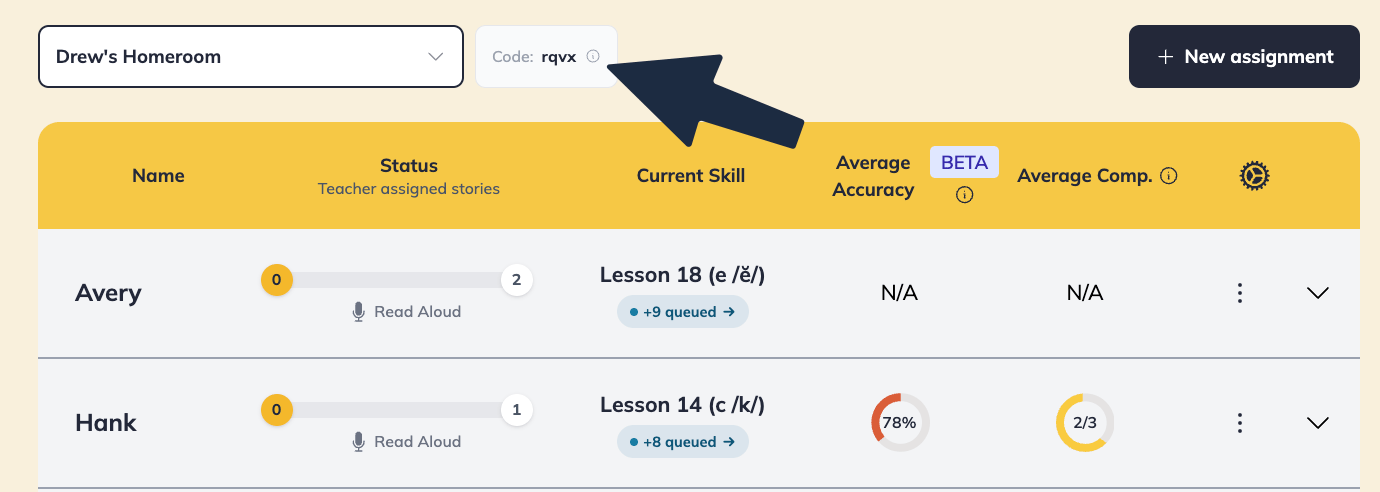
Troubleshooting Sign-In Issues
I can't sign in to my teacher account
I can't sign in to my teacher account
Try these steps in order:
- Check that you’re using the right sign-in method. If you created your account with Google, use Continue with Google — entering your Google email as a magic link may create a separate account.
- Check your inbox (and spam folder) if you’re using the email magic link. The link is valid for one hour.
- Clear your browser cache and cookies, then try again.
- Use Incognito / Private mode to rule out a browser extension conflict.
- If you sign in via Clever or ClassLink and see an error, confirm with your IT administrator that your account is provisioned and that the LitLab integration is active. If you see a “Clever Library not enabled” message, your IT admin needs to enable Clever Library access for your school.
Students are having trouble logging in
Students are having trouble logging in
Students can’t find the sign-in screenFor manually rostered classes (non-district SSO), make sure students are going to litlab.ai/auth/class-code. You can also share the direct join link or QR code from your dashboard to avoid the code-entry step entirely. Learn more about students signing in via links or QR codes here. Students don’t see their name on the rosterTheir name may not have been added to your class yet. Open your class in the teacher dashboard and confirm the student appears on the roster.A student selected the wrong nameStudents can log out, return to the name-selection screen, and sign in as themselves.Clever or ClassLink students are not appearingIf your school or district has updated your rosters, go to the Students tab on the teacher dashboard, find your class, and click on the three dots to the right of the class you want to update. Then click “Re-sync roster with ClassLink/Clever”.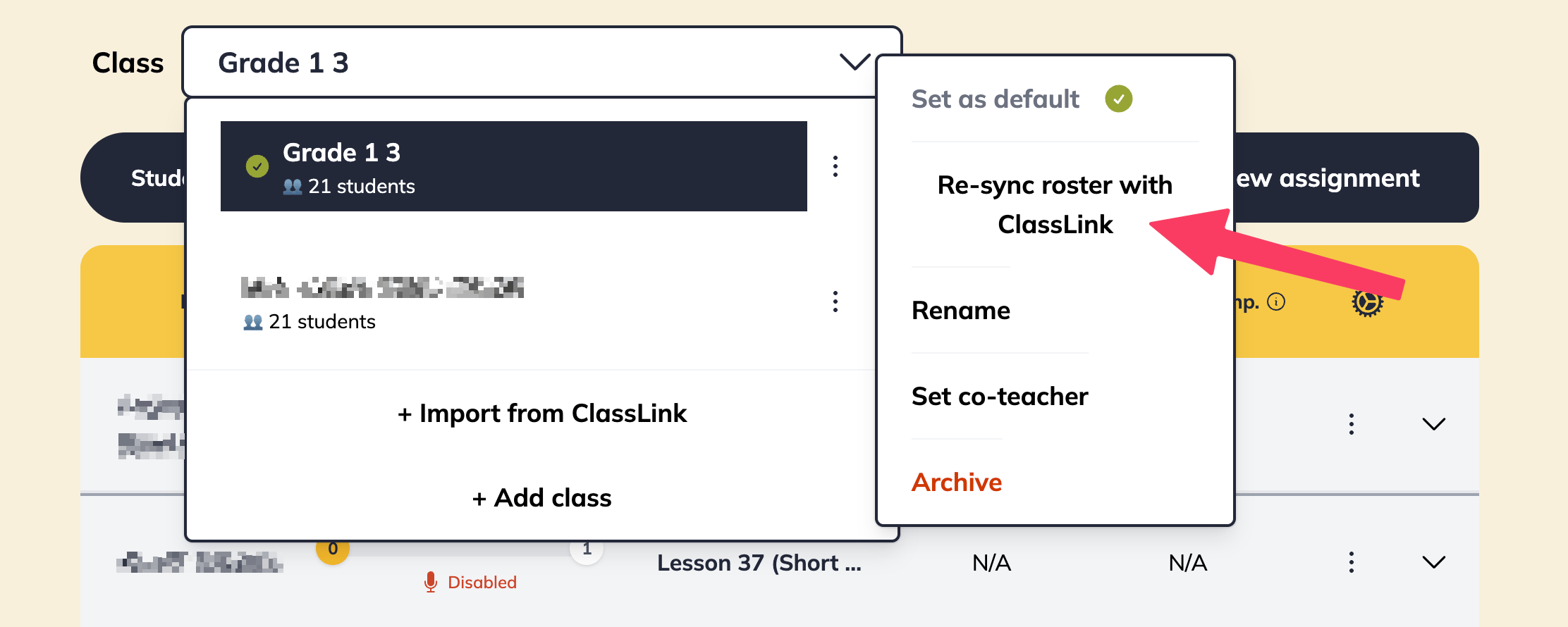
I accidentally created two teacher accounts
I accidentally created two teacher accounts
This can happen if you sign in with Google one time and use a Clever/ClassLink email another time, for example. Use the Contact Us form and share both email addresses, and our team will help.