
Editing a Decodable
What you can edit
Once you open a decodable in the editor, you can change:
When you rewrite a page’s text, LitLab automatically recalculates the decodability — so if you make significant changes to the content, the vocabulary guide will update to match.
How to open the editor
Go to the Grab-and-Go or Community Library, find the decodable you want to edit, and select Edit or Remix from the menu.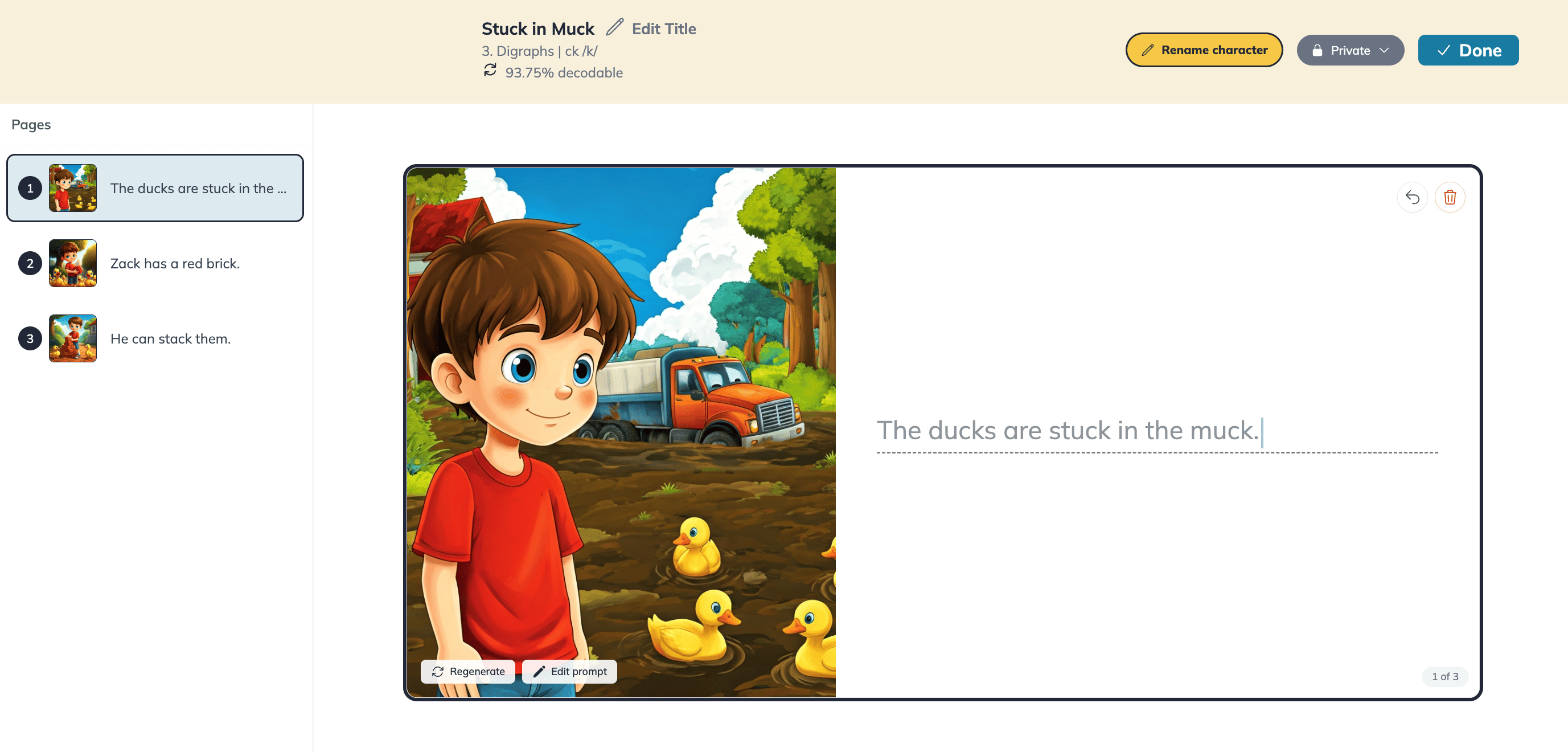
The Edit option will be grayed out if the story is currently assigned to students, or if it’s published to the Community Library. To edit it, finish or delete the active assignment first — or move the story back to Private if it’s published.
Changing a character’s name
You can rename a character across the entire story in one step using the Rename character button in the editor.- Open the story in the editor.
- Click Rename character.
- In the panel that appears, you’ll see the current character name on the left and a field to type the new name on the right.
- LitLab shows you a live preview of every change — how many mentions will be updated and exactly which pages are affected.
- Click Rename [X] mentions to apply the change everywhere at once.
Remixing a Decodable
What remixing does
Remix creates an exact, editable copy of a story under your account — same title, text, character, illustrations, and phonics alignment. The original story is never affected. Once you have the copy, you edit it just like any story you created yourself. Remixing is useful when you find a story in the Grab-and-Go or Community Library (or one of your students’ stories) that’s almost perfect, and you want to tweak it rather than generate something from scratch.Remixing is available for teachers with Premium accounts only. See Free Vs. Premium for more details.
What you can remix
- Any story published to the Grab-and-Go or Community Library
- Any story created by one of your own students
Things to know about remixing
- The copy is identical to the original — including the character name. If you want a different character name, you’ll need to edit it manually afterward (see Changing a character’s name above).
- The original is untouched — whoever created it keeps their version exactly as it was.
- Remixing is a Premium feature — upgrade to Premium to gain access.
Frequently Asked Questions
Can I change a character's name across the whole story at once?
Can I change a character's name across the whole story at once?
Yes — use the Rename character button in the editor. Type the new name, preview all the changes, and click Rename [X] mentions to apply it everywhere at once. Illustrations aren’t automatically regenerated — manually regenerate any images where you want the new name reflected.
If I remix a story, does it affect the original?
If I remix a story, does it affect the original?
No. Remixing only creates a new copy for you — the original is completely unaffected.
Does remixing use up one of my daily story credits?
Does remixing use up one of my daily story credits?
No. Remixing is a copy, not a new AI generation, so it doesn’t count against your daily story creation limit.
Can a student edit or remix a story?
Can a student edit or remix a story?
No — editing and remixing are teacher-only features. A student’s only chance to set a character name is during the original story creation.