
How the assignment queue works
- Students work on one assignment at a time.
- Additional assignments wait in the queue.
- When a student finishes an assignment, the next one unlocks the next time they log in.
Assigning new work
You have two options when creating an assignment: release it immediately or schedule it for a future date.Assign right away
Choosing Right Away moves the new assignment to the front of the queue. Everything else shifts back one spot.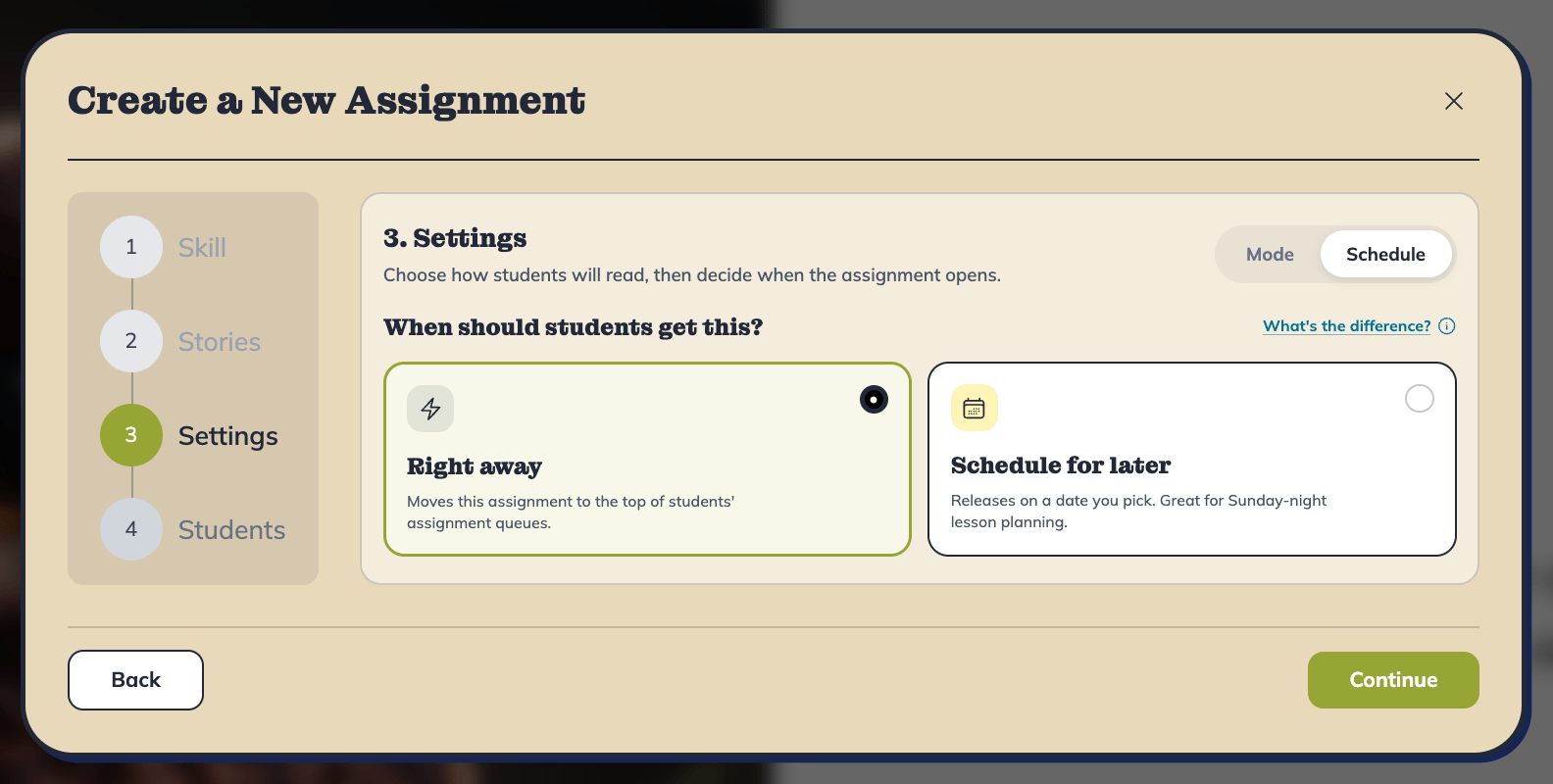
Schedule for later
Choose Schedule for Later to release an assignment on a future date.- Students won’t see the assignment before its release date.
- Scheduled assignments must be set for tomorrow or later.
- On the release date, the assignment is automatically added to the front of the student’s queue.
Editing an assignment
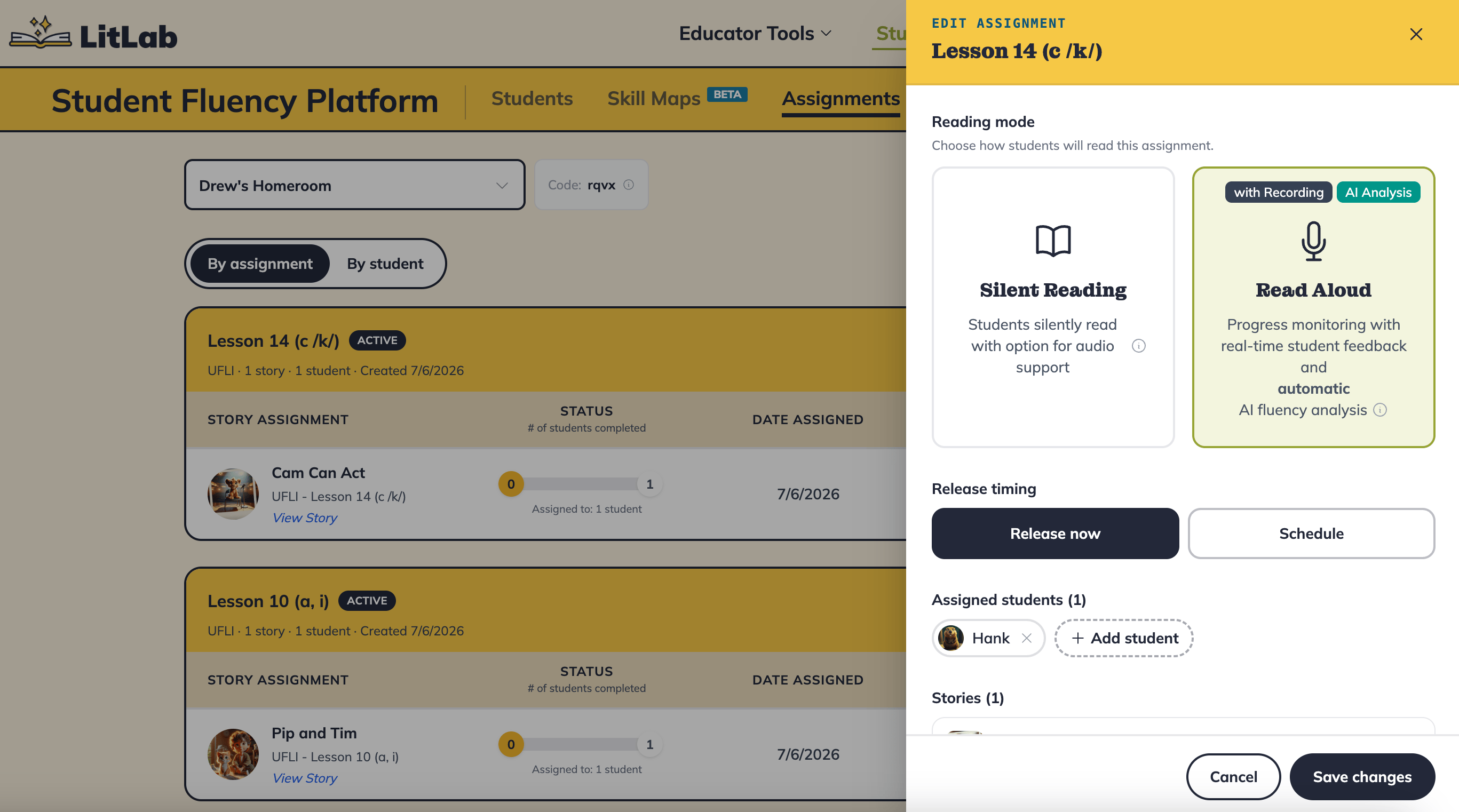
From the Assignments tab, stay on the By assignment toggle, then click Edit on the assignment card you want to change.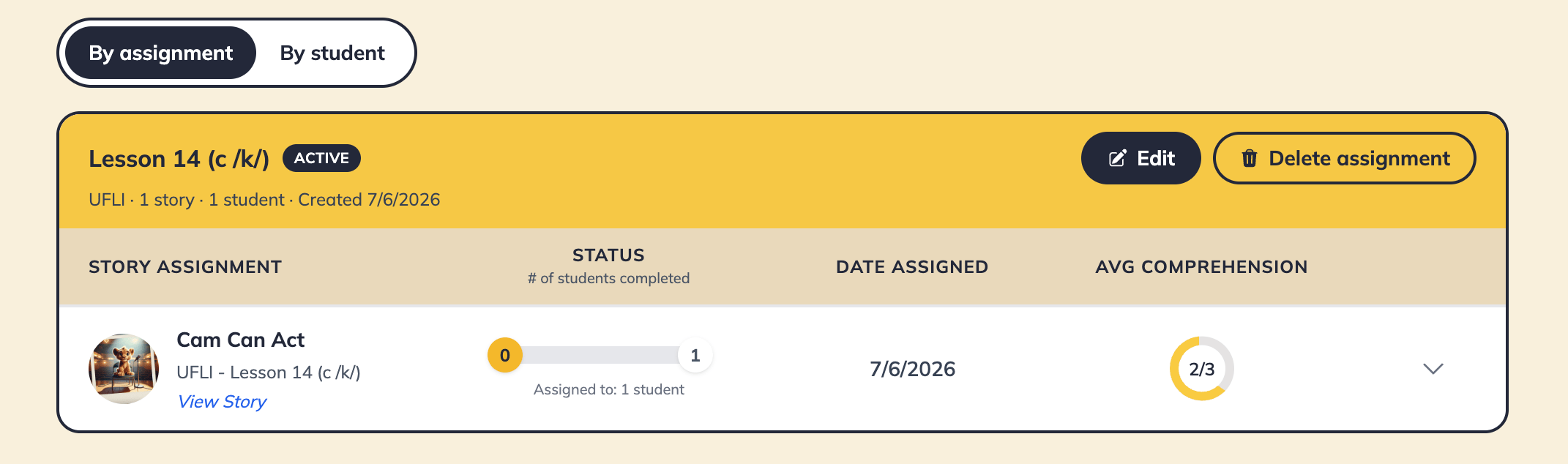
- Reading mode — switch between Silent Reading (students read silently, with an option for audio support) and Read Aloud (progress monitoring with real-time feedback and automatic AI fluency analysis).
- Release timing — choose Release now or Schedule for a future date.
- Assigned students — add or remove students from the assignment.
- Stories — add or remove stories from the assignment.
Managing one student’s queue
Every change above applies at the class level. To adjust what happens for a single student without touching anyone else’s queue, open the Assignments tab on the teacher dashboard and switch to the By student view. Each student’s queue is broken into three sections:- Reading now — the assignment they’re currently on.
- Up next in queue — assignments waiting their turn.
- Scheduled for later — assignments not yet released.
Removing an assignment from one student
Open the ⋯ menu on an assignment card and choose Remove from queue, then confirm in the dialog. This only removes the assignment for that student — everyone else in the class keeps it.Reordering a student’s queue
Assignments in Reading now and Up next in queue can be reordered by dragging them, or via Move up / Move down in the ⋯ menu.- Dragging or moving a queued assignment into the top slot makes it the student’s active assignment.
- In the Scheduled for later section, change the release date or remove the assignment.
When students see their next assignment
After finishing every story in their current assignment, students can keep browsing and creating on LitLab for the rest of that session. The next assignment in their queue becomes available the next time they log in. If there is nothing next in the queue, students keep seeing their completed assignment, with Create a Story and Find a Story unlocked for that same skill.Unlocking story creation
Finishing all stories in an assignment unlocks a student’s ability to create their own stories (up to 3 per day). Students must complete every story in an assignment before Create a Story and Find a Story unlock. Once complete, these buttons unlock immediately—no refresh required.Deleting an assignment for an entire class
To delete an assignment for the whole class, on the Assignments tab on the teacher dashboard, click Delete assignment.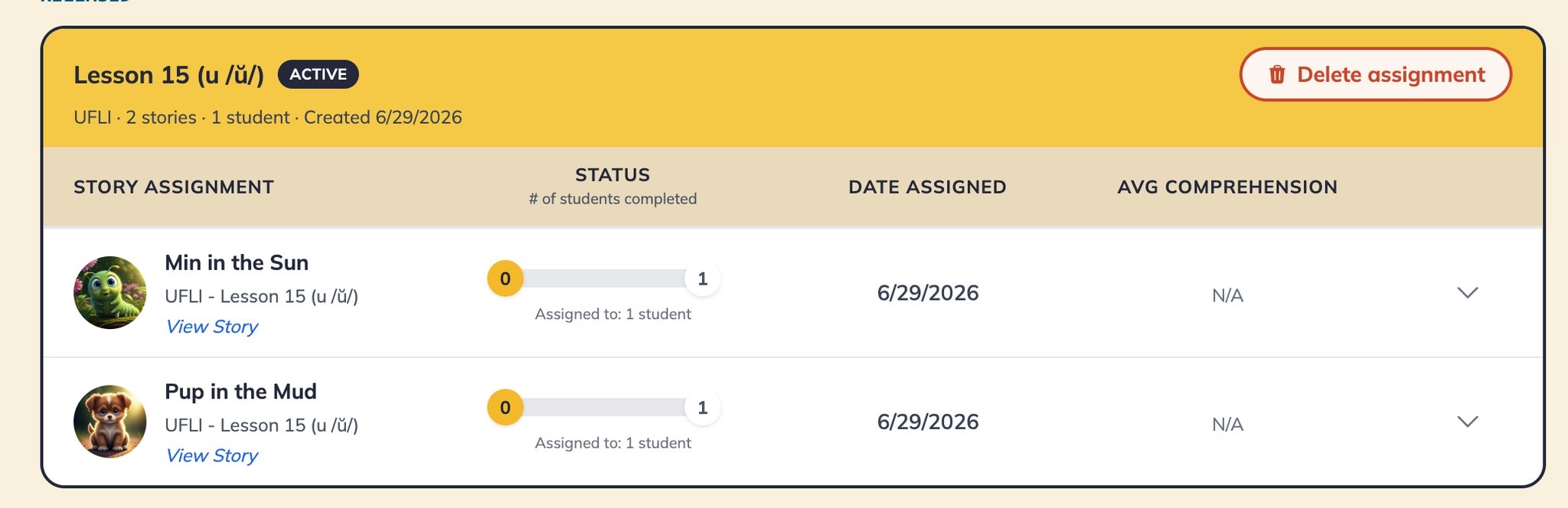
Frequently asked questions
Will students lose their progress if I assign something new?
Will students lose their progress if I assign something new?
No. Progress is automatically saved. The student’s previous assignment simply moves back one spot in their playlist.
Can I schedule an assignment to release today?
Can I schedule an assignment to release today?
No. Scheduled assignments can begin starting tomorrow. If students should start today, choose “Right Away”.
Why can't my student create a story yet?
Why can't my student create a story yet?
Students must finish every assigned story before story creation unlocks. Also, check whether they’ve reached the default limit of 3 created stories per day.
Can I delete an assignment for just one student?
Can I delete an assignment for just one student?
Yes. Open the By student view on the Assignments tab, find the student, and choose Remove from queue on the assignment. This only affects that student—the rest of the class keeps the assignment.Note that an assignment can’t be removed once the student has already started reading it. See Managing one student’s queue for more information.
Can I change the order of a student's queue?
Can I change the order of a student's queue?
Yes. In the By student view, drag an assignment to a new position, or use Move up / Move down in its ⋯ menu. This only works for assignments in Reading now or Up next in queue—completed and scheduled assignments can’t be reordered.
When does the next assignment appear after a student finishes one?
When does the next assignment appear after a student finishes one?
Students continue browsing LitLab for the rest of their current session. The next assignment in their queue appears the next time they log in. If the queue is empty, they keep seeing the assignment they just finished.